Installation
create-nodepress-app creates a ready-to-run project: it downloads the latest release, generates secret keys and installs the dependencies.
Requirements
Section titled “Requirements”| Tool | Version | Check with |
|---|---|---|
| Node.js | 18.18 or newer (22 LTS recommended) | node -v |
| Git | any | git --version |
| PostgreSQL | 14 or newer | psql --version |
Not installing PostgreSQL? Use Docker or a hosted database such as Supabase instead.
1. Create the project
Section titled “1. Create the project”npx create-nodepress-app my-siteThis takes two to five minutes. The command:
- clones the latest NodePress release into
my-site/; - removes files that only matter for developing NodePress itself (its tests, CLI and changelog);
- writes
backend/.envandfrontend/.env.localwith random secrets; - writes a root
package.jsonwith workspace scripts and runsnpm install; - starts a git repository, records the release in
nodepress.json(used to upgrade later) and makes the first commit.
| Option | What it does |
|---|---|
--docker |
Keeps the Docker setup: docker-compose.yml, the nginx and monitoring configs, and docker:* scripts. |
--sentry |
Includes Sentry error tracking (about 100 MB of packages). Off by default. |
--no-install |
Skips npm install, so you can run it yourself. |
2. Connect the database
Section titled “2. Connect the database”Option A: local PostgreSQL
Section titled “Option A: local PostgreSQL”Open my-site/backend/.env and set DATABASE_URL to your PostgreSQL user, password and a database name of your choice. DIRECT_URL gets the same value:
DATABASE_URL="postgresql://postgres:YOUR_PASSWORD@localhost:5432/my_site"DIRECT_URL="postgresql://postgres:YOUR_PASSWORD@localhost:5432/my_site"No password on your local PostgreSQL? Leave it out: postgresql://postgres@localhost:5432/my_site. The database doesn’t need to exist yet. The next step creates it.
Option B: Docker
Section titled “Option B: Docker”Create the project with --docker. Docker Compose then runs the whole stack in containers: PostgreSQL, Redis, the API, the admin and an nginx proxy. The API container applies the migrations when it starts, so skip steps 3 and 4 below:
cd my-sitedocker compose up -d --buildThe first build takes a few minutes. Then open http://localhost/setup to create your admin account. See Docker for the configuration and the production stack.
Hosted PostgreSQL (Supabase, Neon, Railway)
Section titled “Hosted PostgreSQL (Supabase, Neon, Railway)”Use the provider’s connection strings. With a connection pooler, DATABASE_URL and DIRECT_URL are different: the pooled URL serves the app, and the direct (or session) URL runs migrations, which can’t go through a transaction pooler. For Supabase:
# Transaction pooler (port 6543): runtime queriesDATABASE_URL="postgresql://postgres.<ref>:<PASSWORD>@aws-0-<region>.pooler.supabase.com:6543/postgres?pgbouncer=true&connection_limit=1"# Session pooler (port 5432): migrationsDIRECT_URL="postgresql://postgres.<ref>:<PASSWORD>@aws-0-<region>.pooler.supabase.com:5432/postgres"- Keep
?pgbouncer=true&connection_limit=1onDATABASE_URL. Without it, Prisma intermittently fails under load withprepared statement "s0" already exists. - Don’t use Supabase’s “Direct connection” string (
db.<ref>.supabase.co). It is IPv6-only unless you have the IPv4 add-on, so on most networks it fails withP1001: Can't reach database server.
3. Create the tables
Section titled “3. Create the tables”cd my-sitenpm run migrateThis runs the database migrations and creates the database if it’s missing. You only need it once, and again after upgrades.
On a hosted or production database, use migrate deploy, which only applies migrations and never resets anything:
cd backend && npx prisma migrate deployAn authentication error here means the user or password in DATABASE_URL is wrong.
4. Start NodePress
Section titled “4. Start NodePress”npm run dev| URL | |
|---|---|
| Admin panel | http://localhost:5173 |
| API | http://localhost:3000/api |
| Interactive API docs | http://localhost:3000/api/docs |
| Health check | http://localhost:3000/api/health |
5. Create your admin account
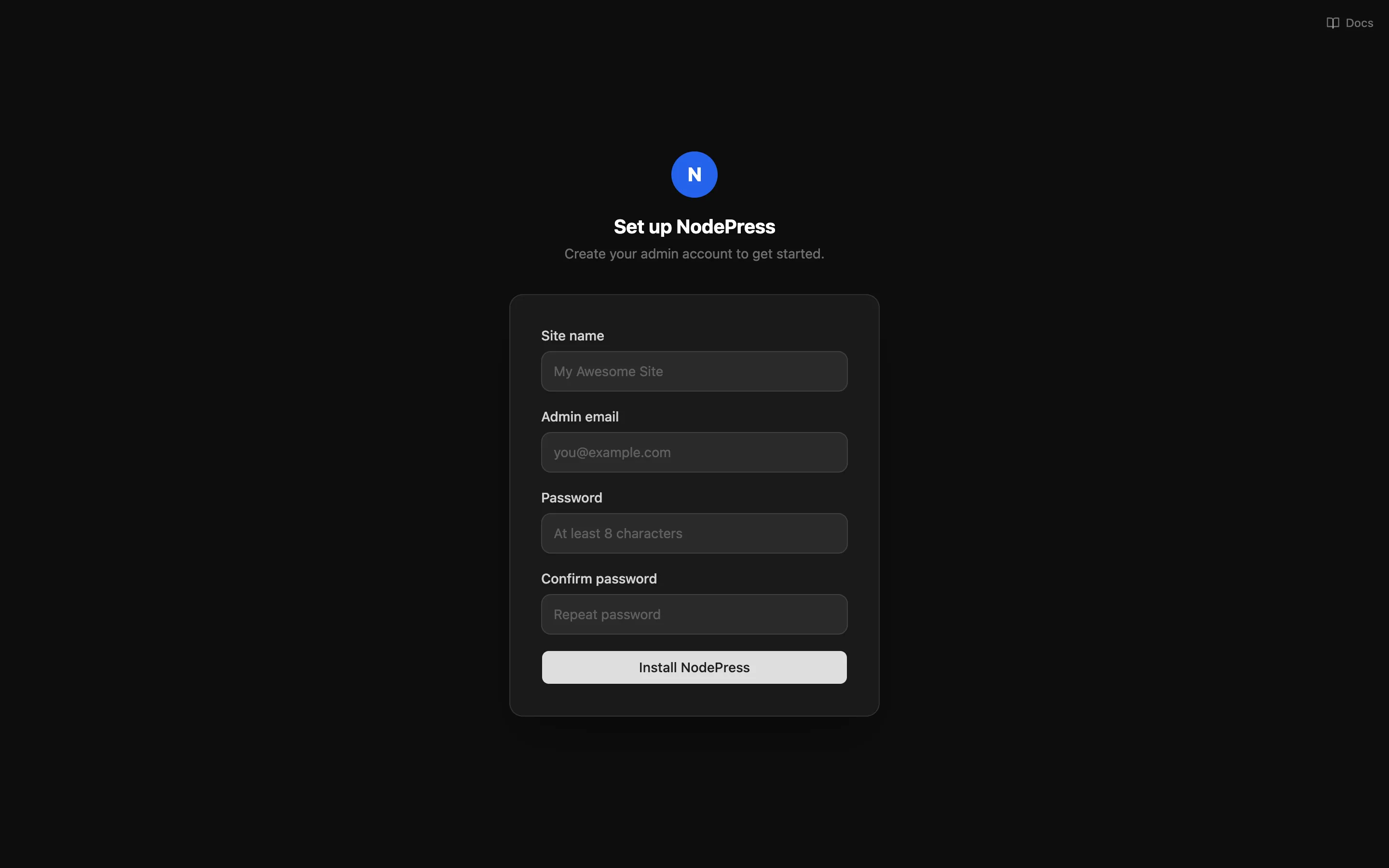
Section titled “5. Create your admin account”Open http://localhost:5173. The first visit takes you to the setup page: enter your site name, email and a password. The account you create is the admin. Setup works only while there are no users; after that, add teammates by invitation from Users.
Project scripts
Section titled “Project scripts”Run these from the project folder:
| Script | What it does |
|---|---|
npm run dev |
Starts the API and the admin together |
npm run dev:backend / npm run dev:frontend |
Starts one of them (ports 3000 and 5173) |
npm run build |
Production build of both |
npm run migrate |
Applies database migrations in development (prisma migrate dev) |
npm run studio |
Opens Prisma Studio, a database browser |
npm run backup / npm run restore -- <file> |
Backs up or restores the database and local uploads |
npm run reset-password |
Resets an admin’s password from the command line |
npm run docker:dev / docker:prod / docker:down |
Docker stack commands (only with --docker) |
Upgrading
Section titled “Upgrading”Commit your work, then run this in the project folder:
npx create-nodepress-app upgrade --dry-run # previewnpx create-nodepress-app upgrade # apply the latest releasenpm installcd backend && npx prisma migrate deployYour own code changes are kept. Where you and NodePress changed the same lines, the command leaves conflict markers for you to resolve. Back up the database before migrating.
Next steps
Section titled “Next steps”- Quick start: create a content type and call its API.
- Project structure: what’s in the folder you just created.