WordPress import
The WordPress importer reads a WordPress export file (WXR) and turns posts, pages and custom post types into NodePress entries. Fields built with Advanced Custom Fields (ACF) become real NodePress fields — flexible content, repeaters, groups, images, links — so a site built in WordPress can move over by exporting and importing one file. It can also bring over attachments, authors and comments. You check a summary first, and the import itself runs in the background.
Admins can import, under Settings → Import.
1. Export from WordPress
Section titled “1. Export from WordPress”In WordPress, go to Tools → Export, choose All content and download the file. The importer accepts one .xml file up to 50 MB. For a larger site, export post types separately and import the files one after another.
2. Check the file
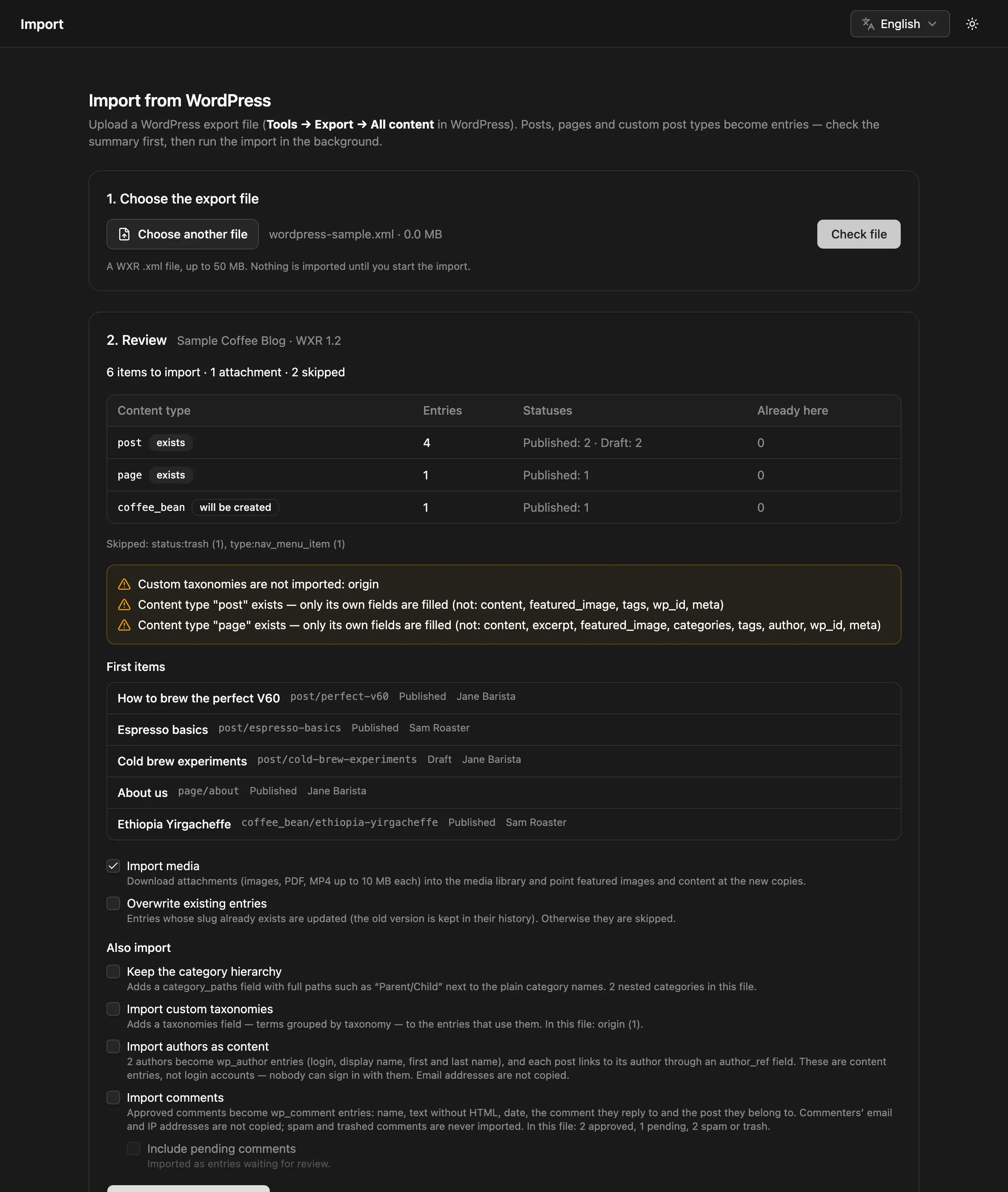
Section titled “2. Check the file”Choose the file and click Check file. Nothing is imported yet. The review shows:
- each content type the import will write to, and whether it exists or will be created;
- how many entries each gets, by status, and how many are Already here;
- the number of attachments, and what will be skipped and why;
- the first few items.
3. Choose options and start
Section titled “3. Choose options and start”| Option | What it does |
|---|---|
| Import media | Downloads attachments (JPEG, PNG, GIF, WebP, SVG, PDF and MP4, up to MEDIA_MAX_MB each — 10 MB unless you raise it) into the media library, in a folder named “WordPress import”. Featured images, ACF image fields and every link to a file — in the content and in custom fields, including WordPress’s resized copies such as photo-300x200.jpg — then point at the new copies. Without it, entries keep pointing at the files on your WordPress site. |
| Overwrite existing entries | Updates entries whose slug already exists (their previous content is kept in their version history). Without it they’re skipped. |
| Keep the category hierarchy | Adds a category_paths field with full paths such as Parent/Child, next to the plain category names. |
| Import custom taxonomies | Adds a taxonomies field, { "taxonomy": ["term", …] }, to entries that use custom taxonomies. |
| Import authors as content | Creates a wp_author entry per author (login, display name, first and last name) and links each post to it through an author_ref field. These are content entries, not login accounts. Email addresses aren’t copied. |
| Import comments | Creates a wp_comment entry per approved comment: author name, text without HTML, date, the comment it replies to and the post it belongs to. Commenters’ email and IP addresses aren’t copied. |
| Include pending comments | With comments: also imports pending comments, as entries waiting for review. |
Click Start import. The page follows the job’s progress (media first, then entries) and shows the result per content type: created, updated, skipped and failed, plus any problems.
What gets imported
Section titled “What gets imported”Content types
Section titled “Content types”Each WordPress post type becomes a content type with the same name: post, page, product… A post type whose name NodePress reserves for its own routes (such as media) gets a wp_ prefix.
A content type that doesn’t exist yet is created with these fields:
| Field | Type | From WordPress |
|---|---|---|
title |
text (required) | The title |
content |
rich text | The post content (HTML) |
excerpt |
textarea | The excerpt |
featured_image |
image | The featured image, with its alt text |
categories |
JSON | Category names |
tags |
JSON | Tag names |
author |
text | The author’s display name |
wp_id |
number | The WordPress post ID |
meta |
JSON | Custom fields that aren’t ACF fields (ACF fields get real fields, below). Keys starting with _ (WordPress and plugin internals) are left out. |
If the content type already exists, it keeps its own schema, and only the fields it has are filled. Values are fitted to that schema — a number stored as text becomes a number, a choice the field doesn’t offer is dropped — so an entry is never refused for its data.
Advanced Custom Fields
Section titled “Advanced Custom Fields”WordPress exports include ACF’s field groups, so the importer knows what every value means. Each field group shown on a post type (by its location rules) adds its fields to that content type:
| ACF field | NodePress field |
|---|---|
| Text, Text area, WYSIWYG, URL, Email, oEmbed | text, textarea, rich text |
| Number, Range | number |
| True / False | boolean |
| Select, Checkbox, Radio, Button group | select (multiple when ACF allows several) |
| Image | image ({ url, alt }) |
| File | text (the file’s URL) |
| Gallery | repeater of images |
| Link | group: title, url, target |
| Date picker, Date time picker | date, date-time |
| Color picker | color |
| Post object, Page link, Relationship | relation to the imported entries, when they all point at one post type; otherwise JSON with each linked post’s type, slug and title |
| Group, Clone | group |
| Repeater | repeater |
| Flexible content | flexible content: each ACF layout becomes a layout, each row a section |
| Taxonomy, User, Google Map, anything else | JSON |
- Tabs, messages and accordions only arrange ACF’s editing screen, so they’re left out.
- Containers nested deeper than NodePress allows (three levels) are stored as JSON, so nothing is lost.
- A field group shown on an options page becomes its own content type, named after the page. WordPress doesn’t export options values, so it starts empty; fill it in the admin.
- A flexible field in which one layout is used more than once gets a section key on each of those sections:
real_magic,real_magic_2… You can rename them afterwards. - Sites whose ACF fields are registered in theme code (PHP or local JSON) have no field groups in the export. Their values are still structured from the meta key names (
sections_0_heading→sections[0].heading) and kept inmeta.
Entries
Section titled “Entries”- The slug is the WordPress slug, or made from the title. When two items in the file share a slug, the second gets its WordPress ID appended, and the review lists it as a warning.
- The entry’s date is the WordPress publish date.
- Entries are created in the default language.
- Entries go through the same validation as entries written in the admin.
| WordPress status | NodePress status |
|---|---|
| Published | published |
| Pending | pending_review |
| Draft | draft |
| Scheduled | draft, with a scheduled publish time, so it publishes itself at the same time |
| Private | draft (NodePress has no private entries) |
| Trash, auto-draft | skipped |
WordPress internals are skipped: revisions, menu items, block patterns and templates, global styles, custom CSS, WooCommerce orders and similar. ACF field definitions are read to build the fields, not imported as entries.
Running it again
Section titled “Running it again”An import isn’t retried automatically. If one stops halfway, for example because the server restarted, run it again from Developer → Jobs, or upload the file again: entries that were already imported are skipped (or updated, with Overwrite existing entries), and media imported before is reused.
An entry whose slug is taken by an entry in the trash fails with a message. Restore or purge the trashed entry, then import again.
Safety
Section titled “Safety”- The importer reads the XML with its own parser, which refuses files that declare entities or a DTD, so a crafted file can’t read server files or exhaust memory.
- Attachments are downloaded only from public internet addresses, never from private or internal networks, with a size limit and a timeout per file. Each file’s type is checked from its content, and SVGs are cleaned like any upload.
| Method | Path | What |
|---|---|---|
POST |
/api/import/wordpress |
Upload the file as multipart field file. With ?dryRun=true it returns the review; otherwise it queues the import and returns { "jobId": 12, "status": "pending", "total": 250 }. |
GET |
/api/import/wordpress/:jobId |
The job’s status (pending, running, done, failed), progress, result and error |
Options are query parameters set to true: importMedia, overwrite, categoryPaths, taxonomies, authors, comments, pendingComments.
curl -X POST "https://cms.example.com/api/import/wordpress?importMedia=true&authors=true" \ -H "Authorization: Bearer $TOKEN" \ -F "file=@wordpress-export.xml"Both endpoints are for admins only.