Entries
An entry is one piece of content of a content type: one post, one product, one page. You write entries in the admin under Entries, and your site reads them from the API. This page covers the editor and everything around it: slugs, statuses, review, scheduling, the trash and bulk actions.
Creating an entry
Section titled “Creating an entry”Open Entries, pick a content type and click New Entry. The form shows one input per field of the content type’s schema (see Fields). Choose a status and a language at the top, then click Create Entry (or Publish when the status is Published).
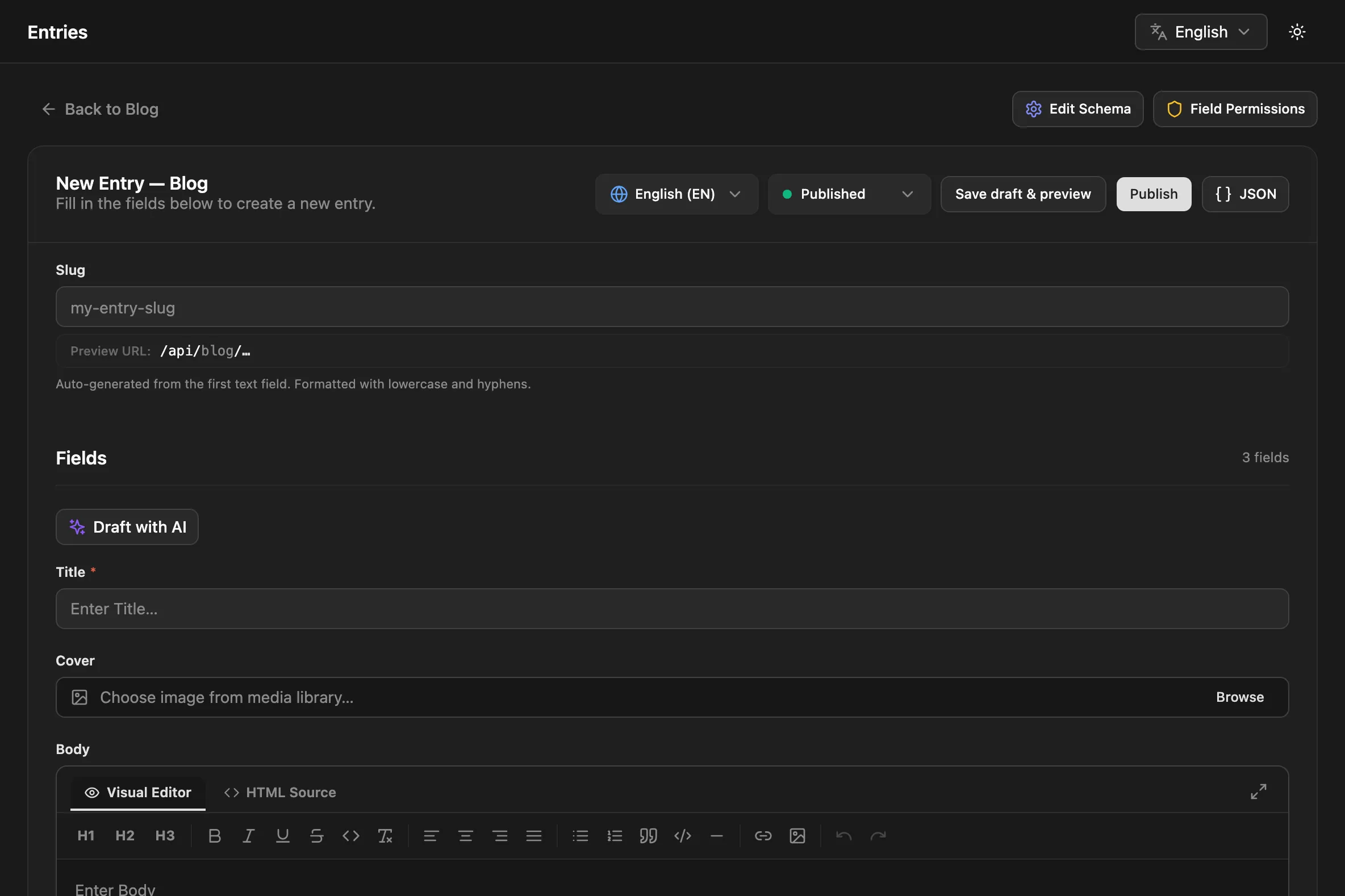
Required fields must have a value before the entry saves. The server checks every value against the schema, so the same rules apply when entries are written through the API.
If the content type has a Preview URL, Save draft & preview saves the entry as a draft and opens it with the live preview pane.
The slug is the entry’s address: /api/blog/hello-world.
- On a new entry, the slug is generated from the first text or textarea field as you type. Once you edit the slug yourself, it stops following that field.
- A slug may contain lowercase letters, numbers, and single hyphens or underscores between them (
my-first-post), up to 200 characters. - It must be unique within its content type and language. The English and French translations of an entry share one slug.
- You can change the slug of an existing entry. The editor warns you, because links to the old address stop working.
When the slug of a published entry changes, NodePress adds a 301 redirect from the old path to the new one. See Redirects.
Statuses
Section titled “Statuses”| Status | Meaning | Public API |
|---|---|---|
Draft (draft) |
Work in progress | Hidden |
Pending review (pending_review) |
Submitted for approval | Hidden |
Staging (staging) |
Ready for QA on a staging site | Only with ?stage=staging and credentials |
Published (published) |
Live | Visible to everyone |
Archived (archived) |
Retired | Hidden |
Pick the status in the editor’s status selector and save. The entries list shows published entries as Production and has quick actions Promote to Staging (QA) and Publish to Production.
Unpublished stages can be read through the API with ?stage=draft, staging or all and a login token or API key. See REST API.
Review workflow
Section titled “Review workflow”Contributors can create and edit entries but not publish them (this is the default; admins can change it under Users → Permissions, see Permissions).
- A contributor writes the entry and sets it to Pending review, or selects entries in the list and clicks Submit for Review.
- The entries list shows how many entries are waiting, per content type. Show Pending Reviews filters to them.
- An editor or admin opens the entry. A banner offers Approve & Publish or Return to Draft.
A contributor who tries to save an entry as Published gets an error. New entries default to Published in the editor, so contributors should pick Draft or Pending review before creating one.
Scheduled publishing
Section titled “Scheduled publishing”A draft can publish itself at a set time.
- Set the status to Draft. The Scheduled Publish field appears.
- Pick a date and time, and save.
NodePress checks every minute and publishes drafts whose time has passed. The entries list marks scheduled entries with Scheduled and the date. To cancel, clear the field and save. Publishing the entry by hand also clears the schedule.
Through the API, send publishAt (an ISO date-time) with status: "draft" to POST /api/entries or PUT /api/entries/:id, and publishAt: null to clear it.
To publish several entries together at one moment, use a release instead.
Autosave
Section titled “Autosave”While you edit an existing entry, the editor saves your changes 3 seconds after you stop typing and shows Saved. Autosave sends the whole form, status included, so changing the status selector also takes effect after 3 seconds. New entries aren’t autosaved until you create them.
Every save, autosaves included, keeps a version of the entry as it was before.
Editing together
Section titled “Editing together”When several people open the same entry, the editor shows who else is there and how many people are online. The first person holds a soft lock. Others see a banner saying who is editing, because saving at the same time can overwrite each other’s changes.
- The lock is released when the holder leaves the entry, and expires a minute after their browser stops renewing it.
- Admins and editors can click Take Over Lock.
- The lock is a warning, not a block: anyone with permission can still save.
Presence uses the realtime connection described in Realtime.
SEO fields
Section titled “SEO fields”Every entry has an SEO & Open Graph section, separate from the content type’s fields:
| Field | Key | Use |
|---|---|---|
| SEO Title | seo.title |
Overrides the page title in search results |
| Meta Description | seo.description |
The snippet under the title (120–160 characters recommended) |
| OG Image URL | seo.image |
The image for social shares (1200×630 recommended) |
| Exclude from search engines (noindex) | seo.noIndex |
Ask search engines not to index the page |
The API returns them in the entry’s seo object (or seo: null). Your site renders the tags. See SEO.
Other editor tools
Section titled “Other editor tools”- JSON shows the entry’s data as JSON while you edit.
- Reference shows another language’s translation next to the form. See Languages.
- Live opens the live preview pane, when the content type has a Preview URL.
- Release adds the entry to a release (editors and admins).
- Draft with AI fills the fields from a description, when AI help is turned on.
- Version History lists earlier versions. See Versions.
The entries list
Section titled “The entries list”The list shows the entries of one content type, newest first, 20 per page. You can filter by language and status, and search the slug and field values.
The language column shows which translations exist for each entry, and which are missing.
Row actions:
| Action | What it does |
|---|---|
| Duplicate | Creates a copy with the slug <slug>-copy (or -copy-2 up to -copy-10) and opens it. |
| Copy API URL | Copies the entry’s public API address. |
| Promote to Staging (QA) / Publish to Production | Changes the status in one click. |
| Delete | Moves the entry to the trash. |
Bulk actions
Section titled “Bulk actions”Select entries with the checkboxes to act on all of them at once:
| Button | Status it sets | Who can use it |
|---|---|---|
| Stage (QA) | staging |
Admins, editors |
| Publish (Prod) | published |
Admins, editors |
| Submit for Review | pending_review |
Admins, editors, contributors |
| Archive | archived |
Admins, editors |
| Add to release | (added to a release) | Admins, editors |
| Delete | moves to the trash | Admins, editors |
A bulk action checks the user’s permission for every content type involved, and changes nothing if any is not allowed.
Deleting an entry moves it to the Recycle Bin. Trashed entries are hidden from the API and from the entries list, and they stay there until someone acts on them:
- Restore brings the entry back with its status and data (admins and editors).
- Purge deletes it and all its versions for good (admins only).
Through the API: DELETE /api/entries/:id moves an entry to the trash, POST /api/entries/:id/restore restores it, and DELETE /api/entries/:id/purge purges it. GET /api/entries?deleted=true lists the trash.
Import and export
Section titled “Import and export”Editors and admins can export a content type’s entries (everything except the trash) as JSON or CSV, and import entries from a JSON or CSV file:
- Import runs a dry run first and shows each row as Create or Update, with any problems.
- Rows are matched to existing entries by slug and language. With Update duplicate entries on (the default), matching entries are updated; otherwise they’re skipped.
- Imported rows without a status become drafts.
To bring content over from WordPress, use the WordPress import.
Admin API
Section titled “Admin API”The admin uses these endpoints. They all need a login token (Authorization: Bearer <token>).
| Method | Path | Who | What |
|---|---|---|---|
GET |
/api/entries |
Any signed-in user | List entries. ?contentTypeId=, ?status=, ?locale=, ?search=, ?deleted=true, ?page=, ?limit= (default 20, max 100) |
GET |
/api/entries/:id |
Any signed-in user | One entry, with its translations |
POST |
/api/entries |
Contributors, editors, admins | Create: contentTypeId, slug, data, optional locale, status (default published), seo, publishAt |
PUT |
/api/entries/:id |
Contributors, editors, admins | Update any of slug, status, data, seo, publishAt |
DELETE |
/api/entries/:id |
Editors, admins | Move to the trash |
POST |
/api/entries/:id/restore |
Editors, admins | Restore from the trash |
DELETE |
/api/entries/:id/purge |
Admins | Delete for good |
POST |
/api/entries/:id/promote |
Contributors, editors, admins | Set { "status": "…" }; contributors may only choose draft or pending_review |
POST |
/api/entries/bulk-publish, bulk-stage, bulk-archive, bulk-delete |
Editors, admins | Body { "ids": [1, 2, 3] } |
POST |
/api/entries/bulk-pending-review |
Contributors, editors, admins | Body { "ids": [1, 2, 3] } |
GET |
/api/entries/export |
Editors, admins | ?contentTypeId= and ?format=json or csv |
POST |
/api/entries/import |
Editors, admins | ?contentTypeId=; body { entries, csvContent, dryRun, updateDuplicates } |
Your site doesn’t need these. It reads entries from the public /api/:type endpoints, see REST API.