Deploy on a server with Docker
This guide puts NodePress on a Linux server you rent (a VPS) with automatic HTTPS. It takes about 20 minutes, most of it waiting. You copy and paste every command; no programming is needed.
The installer uses Docker to set everything up, but you don’t need to know Docker: you install it with one command in step 4 and never touch it again. If you’d rather not use Docker, follow Deploy on a server without Docker instead.
You’ll end up with the database, API and admin all on one server, at https://cms.example.com (use your own domain wherever this guide says cms.example.com).
1. Create the server
Section titled “1. Create the server”At any VPS provider — DigitalOcean (Droplet), Hetzner Cloud, AWS Lightsail, Linode, Vultr — create a server with:
| Setting | Choose |
|---|---|
| Operating system | Ubuntu 24.04 LTS (or 22.04) |
| Memory | 2 GB or more (1 GB works only with swap, see step 4) |
| Disk | 25 GB or more; uploads are stored here |
| Region | Close to the people who’ll use the admin |
| Login | An SSH key if you have one, otherwise a root password |
| Backups | Turn on the provider’s automatic backups if offered; it’s the easiest safety net |
When it’s ready, note the server’s public IPv4 address, such as 203.0.113.10.
2. Point your domain at the server
Section titled “2. Point your domain at the server”Where your domain’s DNS is managed (your registrar, or Cloudflare), add a record:
| Type | Name | Value |
|---|---|---|
A |
cms (for cms.example.com), or @ for the bare domain |
The server’s IP address |
DNS changes can take from a minute to an hour to spread. Carry on with the next steps meanwhile; the installer only needs it at the very end.
3. Connect to the server
Section titled “3. Connect to the server”On macOS or Linux open Terminal; on Windows open PowerShell. Then:
ssh root@203.0.113.10Use your server’s IP. On AWS Lightsail the user is ubuntu instead of root, and some providers also offer a Console button that opens a terminal in the browser.
Everything from here on runs on the server. If you logged in as a user other than root, put sudo in front of the commands in step 4.
4. Install Docker
Section titled “4. Install Docker”curl -fsSL https://get.docker.com | shThis installs Docker and Docker Compose from Docker’s official script. Check it worked:
docker compose versionIt should print Docker Compose version v2.24 or newer.
If you logged in as ubuntu (or another non-root user), let it use Docker, then log out and back in:
sudo usermod -aG docker $USERexitServer with 1 GB of memory? Add 2 GB of swap first. NodePress normally arrives ready-made, but if it ever has to be built on the server, 1 GB isn’t enough:
fallocate -l 2G /swapfile && chmod 600 /swapfile && mkswap /swapfile && swapon /swapfileecho '/swapfile none swap sw 0 0' >> /etc/fstabFirewall. If the server has a firewall switched on (ufw status says active), allow web traffic:
ufw allow OpenSSH && ufw allow 80 && ufw allow 4435. Install NodePress
Section titled “5. Install NodePress”Replace the domain and email, then run:
curl -fsSL https://raw.githubusercontent.com/buildwithkode/nodepress/main/scripts/install.sh \ | DOMAIN=cms.example.com ACME_EMAIL=you@example.com bashThe installer:
- downloads the latest NodePress release into a
nodepressfolder; - generates the secrets (login signing key, database password);
- downloads NodePress ready-made for that release and starts the database, API, admin, nginx and Caddy;
- waits until the API is healthy.
This usually takes a few minutes. (Releases made before ready-made images existed are built on the server instead, which takes 5–10 minutes.) When it’s done you’ll see:
✔ NodePress is running at https://cms.example.com Open https://cms.example.com/setup to create the admin account.ACME_EMAIL is only used by Let’s Encrypt to warn about certificate problems; you can leave it out.
6. Create the admin account
Section titled “6. Create the admin account”Open https://cms.example.com/setup in your browser. The first visit can take a few seconds while the HTTPS certificate is issued.
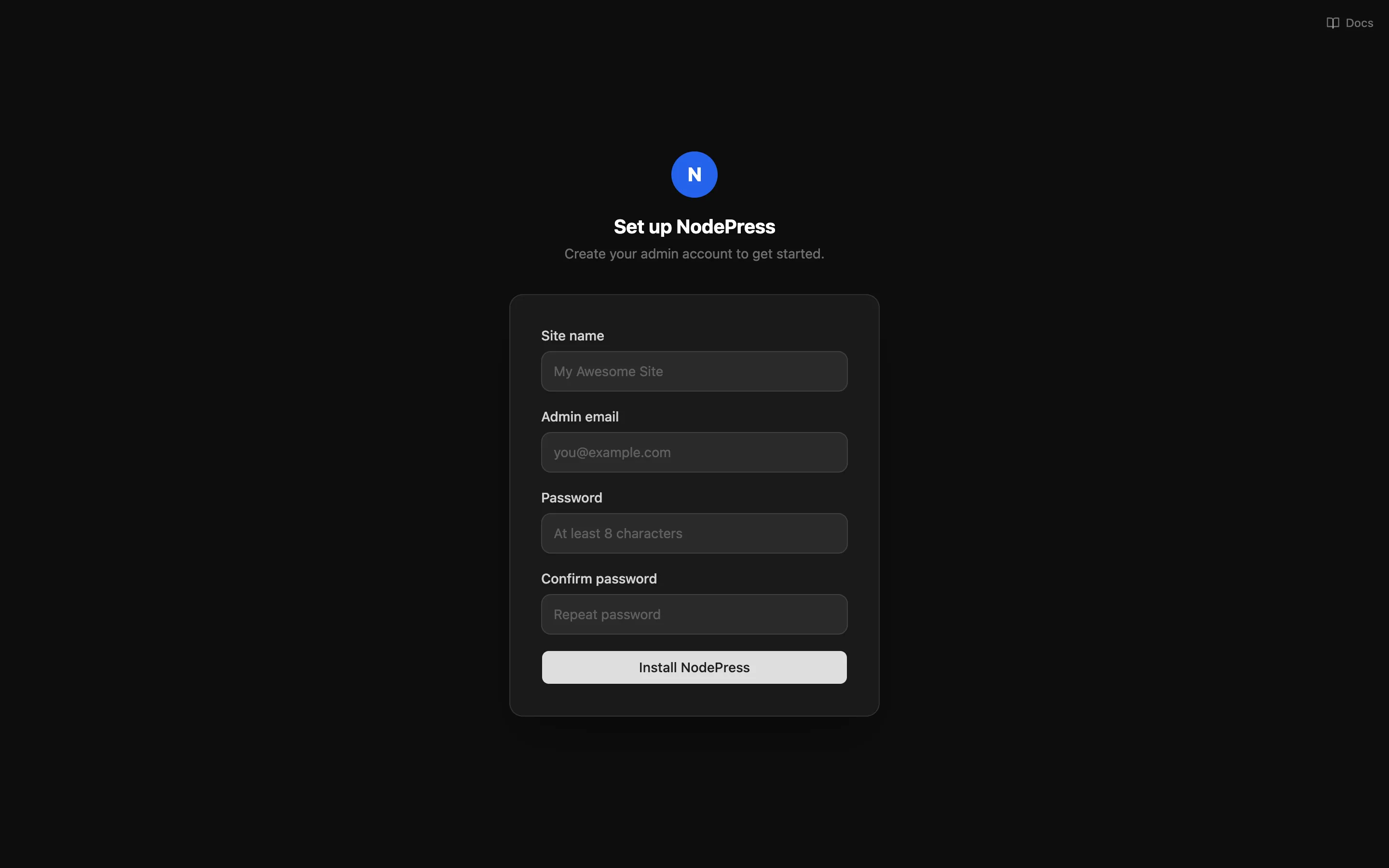
The setup wizard asks for the site name and the first admin’s email and password, then offers to set up email. Setup only works once: after the first account exists, add people from Users.
7. Set up email
Section titled “7. Set up email”NodePress sends invitations, password resets and form notifications by email. In the admin open Settings → Email & storage and fill in the Email card with your provider’s SMTP details:
| Provider | SMTP server | Port |
|---|---|---|
| Resend | smtp.resend.com |
587 |
| Brevo | smtp-relay.brevo.com |
587 |
| Postmark | smtp.postmarkapp.com |
587 |
| Amazon SES | email-smtp.<region>.amazonaws.com |
587 |
| Gmail (small teams) | smtp.gmail.com |
587, with an app password |
Click Send test, and save once it arrives. See Email for the details, including the sender address.
8. Uploads
Section titled “8. Uploads”Nothing to do. On a server, uploads are kept in a Docker volume that survives restarts and updates. If you’d rather keep them in S3-compatible storage (for a CDN, or to keep the server small), set it up under Settings → Email & storage; see File storage.
9. Backups
Section titled “9. Backups”Use two layers:
- The provider’s server backups (step 1), which copy the whole server.
- A nightly database dump kept on the server for 14 days. Run this once to set it up:
mkdir -p /root/backups( crontab -l 2>/dev/null; echo '0 3 * * * cd /root/nodepress && docker compose exec -T db pg_dump -U postgres --format=custom nodepress > /root/backups/nodepress-$(date +\%F).dump && find /root/backups -name "nodepress-*.dump" -mtime +14 -delete' ) | crontab -(As a non-root user, replace /root with your home folder, such as /home/ubuntu.)
Also save the generated secrets somewhere safe, once. Email and storage passwords saved in the admin are encrypted with them, so a restore needs the same secrets:
cd /root/nodepressdocker run --rm -v nodepress_secrets_data:/s -v "$PWD":/out alpine tar -czf /out/secrets.tar.gz -C /s .Download secrets.tar.gz (for example with scp root@203.0.113.10:/root/nodepress/secrets.tar.gz . from your own computer) and keep it with your passwords, then delete it from the server. Copying the dumps off the server now and then is wise too. Backups covers restoring.
10. Updating
Section titled “10. Updating”Connect to the server and run the same install command again from the same folder (the domain is remembered, so it can be left out):
curl -fsSL https://raw.githubusercontent.com/buildwithkode/nodepress/main/scripts/install.sh | bashIt downloads the newest release and restarts; database changes are applied automatically. Your content, uploads and settings stay as they are. See Upgrading before a major version.
If something goes wrong
Section titled “If something goes wrong”The installer’s commands work from the nodepress folder. Logs are the first place to look:
cd /root/nodepressdocker compose -f docker-compose.yml -f docker-compose.https.yml logs --tail 100 backend # or caddy, frontend, dbdocker compose -f docker-compose.yml -f docker-compose.https.yml ps # what's running| Problem | What to do |
|---|---|
| The browser shows a certificate or “not secure” error | DNS isn’t pointing at the server yet, or ports 80/443 are blocked. Check with dig +short cms.example.com (should print the server’s IP), wait a few minutes, then restart Caddy: docker compose -f docker-compose.yml -f docker-compose.https.yml restart caddy. On Cloudflare, use DNS only. |
The installer stops with Killed or an out-of-memory error while building |
Add swap (step 4) and run the installer again. |
HTTPS needs Docker Compose v2.24 or newer |
Update Docker: run the step 4 command again. |
The backend didn't become healthy in 5 minutes |
Read the backend log (above). Run the installer again after fixing what it reports. |
502 Bad Gateway right after starting |
The API is still starting; wait a minute. |
| Invitation emails don’t arrive | Check Settings → Email & storage → Send test. Some providers block port 25; use 587. Until email works, the admin copies invite links to your clipboard. |
| Forgot the admin password | Use Forgot password? on the login page (needs email), ask another admin to send you an invite link from Users, or reset it on the server. |
Reset the admin password on the server
Section titled “Reset the admin password on the server”When there’s no other admin and email isn’t working, set a new password directly. In the nodepress folder, replace the password and email and run:
HASH=$(docker compose exec -T backend node -e "let b; try { b = require('bcryptjs') } catch { b = require('bcrypt') } process.stdout.write(b.hashSync(process.argv[1], 10))" 'NewPassword123')docker compose exec -T db psql -U postgres nodepress -c "UPDATE users SET password='$HASH' WHERE email='you@example.com';"It should print UPDATE 1. Sign in with the new password, then change it from the key icon on your row in Users.
When everything works, go through the go-live checklist.